How do I reset my password?
Use email OTP to set a new password for your email/password account.
For email/password accounts, use Forgot your password? on Login. For Google sign-in, use your Google account instead.
You need access to the account’s registered email inbox because the OTP confirms that you can receive email for that account. The OTP verification page comes before the form where you set a new password.
Reset your password
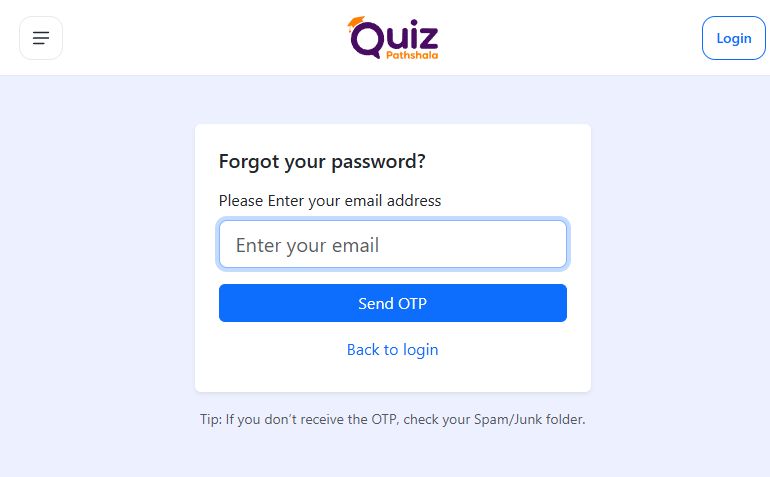
- Open Login and click Forgot your password?.
- Enter your registered email and click Send OTP.
- Open the email from Quiz Pathshala, enter its OTP on the verification page, and submit.
- Enter your new password and the same value in Confirm password. Save it.
- Return to Login and sign in with the new password.
OTP missing or rejected?
Check Spam/Junk and confirm the email address. Use Resend OTP when its countdown ends, then enter the latest code without spaces.
Useful information
Choose a password the form accepts
Use at least 8 characters, including an uppercase letter, a lowercase letter, a number and one supported symbol: @, $, !, %, *, ? or &. Enter it identically in both password fields and click Update Password. Use a password that is difficult to guess and do not share it or the OTP.
If you still cannot reset it
Check that you entered the registered email, not another address. If you cannot access that inbox, or a fresh OTP is still rejected, contact support@quizpathshala.in with your account email and the exact error. A Google account password is managed through Google; Quiz Pathshala’s email-password reset does not change it.
Email folders and delivery
Besides Spam/Junk, check filtered Promotions or Updates folders. Allow a short delivery delay before requesting a new code. Do not repeatedly send requests while the resend countdown is active.
More help on this topic
See this screen